Redeploy a Scenario
The redeployment function is used to update a scenario that already exists in the Orchestra runtime.
Before starting a redeployment, it is recommended to deactivate any triggers of this scenario and allow all running processes to finish. After a successful redeployment, the triggers can be reactivated (see chapter Scenario Triggers).
A redeployment will not:
- Affect the statistics, such as finished processes in the process overview.
- Reset your landscape and user configuration to Designer settings (i.e., your adjustments remain intact) unless you enable the overwrite option in the redeploy dialog.
Exceptions to the rule apply to timers: After a redeployment, any disabled timers are reactivated and must be turned off again!
Using the Context Menu
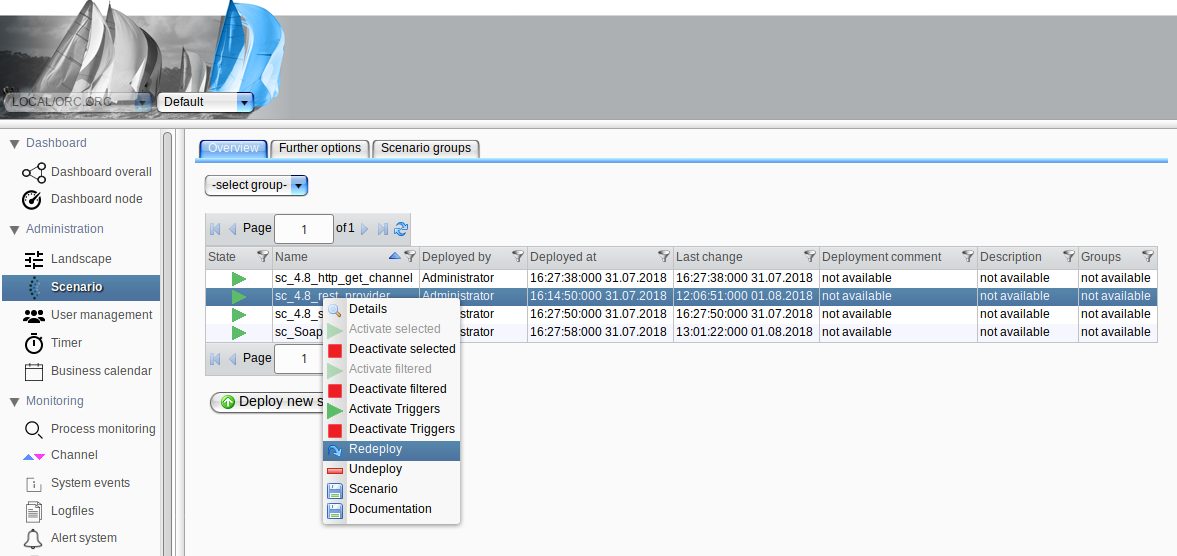
Select a single scenario, then perform a right-click to open the context menu. Choose the "Redeploy" command, and the familiar upload dialog (similar to deploying a scenario) will appear (for more details, see chapter Deployment of a Scenario). Select your scenario file, add a redeployment comment, and upload your scenario to the runtime.
In the redeploy dialog, you will see an additional option to configure whether to overwrite the landscape and credentials during redeployment. By default, these settings are preserved. If you want the scenario to match exactly what is defined in Designer, enable this option to overwrite the runtime's landscape and credential settings with those from the scenario file.
Overwriting Landscape and Credential Settings
During redeployment, the runtime typically retains the existing landscape and credential settings, even if the scenario file contains different values. This prevents unintended overwriting of manual changes in the runtime.
The redeployment dialog includes two new checkboxes:
- Overwrite landscape
- Overwrite credentials
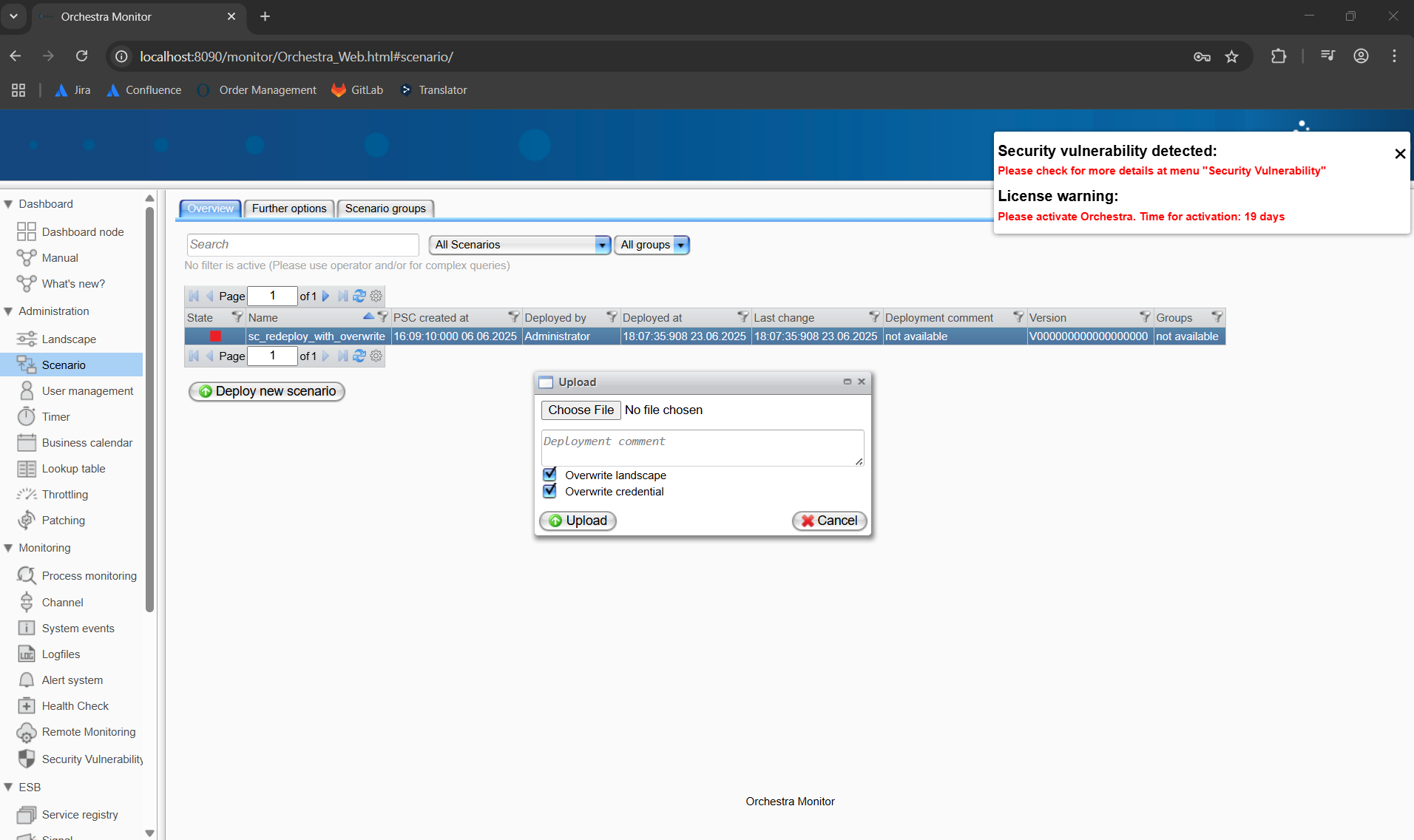
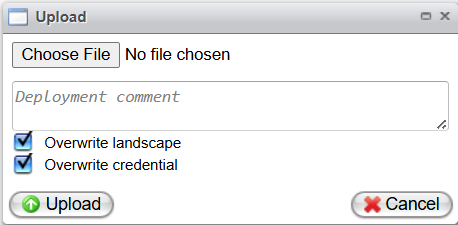
If you enable one or both of these options, Orchestra will overwrite the corresponding runtime settings with those defined in the scenario file. Use this option if you want the deployed scenario to fully match the configuration from Orchestra Designer, including landscape and credential data.
Enabling these options will remove any manual changes made in the runtime for the selected areas and replace them with the values from the scenario file.
Using the Scenario Detail View
Select a single scenario, perform a right-click, or directly right-click on a scenario and then select "Details" from the context menu.
A dialog will pop up displaying further details about the scenario. At the bottom of the dialog, there is a "Redeploy" button, which will also open the upload dialog as described above. Further details can be found in chapter Scenario Details.